---
title: "Where Can I Find \"My Assignments\"?"
description: "Can't find your assignments in order by due date? To make navigating your assignments even easier, the \"My Assignments\" page includes tools to help you quickly locate and manage your learning content."
---
[Skip to content](https://knowledgebase.salesboost.com/knowledge/where-can-i-find-my-assignments#main-content)
English
Show submenu for translations
[More support](https://knowledgebase.salesboost.com/knowledge/kb-tickets/new?hsLang=en)

- [Home](https://salesboost.com/)
- [About Us](https://salesboost.com/platform-tour/)
- [Blog](https://blog.salesboost.com/)
Open main navigation
Close main navigation
- [Home](https://salesboost.com/)
- [About Us](https://salesboost.com/platform-tour/)
- [Blog](https://blog.salesboost.com/)
- English
Show submenu for translations
- [More support](https://knowledgebase.salesboost.com/knowledge/kb-tickets/new)
- [Contact us](https://knowledgebase.salesboost.com/knowledge/kb-tickets/new)
[Contact us](https://knowledgebase.salesboost.com/knowledge/kb-tickets/new?hsLang=en)
How can we help you?
- There are no suggestions because the search field is empty.
1. [Support Community](https://knowledgebase.salesboost.com/knowledge?hsLang=en)
2. [Support For Learners](https://knowledgebase.salesboost.com/knowledge/support-for-learners?hsLang=en)
# Where Can I Find "My Assignments"?
## If you're looking for a clear, organized view of all your learning assignments—sorted by due date and category—the "My Assignments" page is the best place to go.
### Why You Might Be Seeing Courses Out of Order
If your courses appear out of sequence or are not grouped the way you expect, you may be viewing the **course carousel** on your dashboard. While helpful for quick access, the carousel does not sort courses by due date or assignment type.
---
### How to Access "My Assignments"
1. **Click the drop-down arrow** next to your profile image and name in the **upper-right corner** of your screen.
2. From the menu, select **My Assignments**.
3. You’ll be taken to a page that shows your assignments in a more structured format.
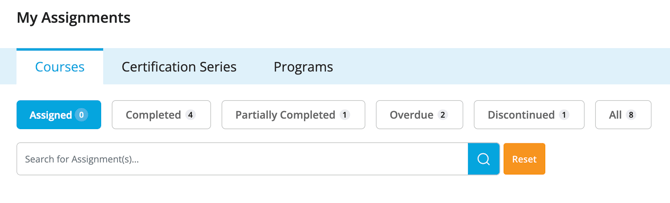
> By default, the page opens to the **Courses **tab, showing all assigned courses sorted by due date.
>
> Once you have successfully navigated to **My Assignments**, you will see a screen that includes the section below:
>
> ### 
**⭐ Pro Tip**: Bookmark this page for quick and easy access that takes you directly to your assignments every time!
---
### Explore by Category
On the **My Assignments** page, you can easily switch between tabs to view your content by assignment type:
- **Courses** – Individual learning modules
- **Certification Series** – Bundled learning tracks
- **Programs** – Broader learning paths with structured progression
---
### Filter by Status or Search for What You Need
To make navigating your assignments even easier, the **My Assignments** page includes tools to help you quickly locate and manage your learning content.
#### **Toggle Between Content Statuses**
You can filter your view to see assignments based on their current status. Just use the **status toggles or filters** at the top of the page to switch between:
- **Assigned** – Courses or series that are due or in progress
- **Partially Completed** – Items you’ve started but haven’t finished
- **Completed** – Content you’ve already finished
- **Overdue** – Assignments that have passed their due date (if applicable)
This lets you focus on exactly what needs your attention at any given time.
---
### **Use the Search Bar**
Looking for something specific? Use the **search bar** below the tabs and status filters to quickly find a **course, certification series, or program** by name—no need to scroll through everything manually.
Just type in a keyword or title, and results will appear instantly, saving you time and helping you stay on track.
- [Support FAQs](https://knowledgebase.salesboost.com/knowledge/support-faqs?hsLang=en)
- [Support For Learners](https://knowledgebase.salesboost.com/knowledge/support-for-learners?hsLang=en)
- [Support For Leaders](https://knowledgebase.salesboost.com/knowledge/support-for-leaders?hsLang=en)
- [Home](https://salesboost.com/)
- [About Us](https://salesboost.com/platform-tour/)
- [Blog](https://blog.salesboost.com/)
[](https://knowledgebase.salesboost.com/?hsLang=en)
[mailto:email@email.com](mailto:email@email.com)
Copyright © 2025, SalesBoost, LLC