---
title: Managing Extension Requests from Your Learners
description: Review and respond to overdue course extension requests—right from the platform. Learners can now submit extension requests for any overdue courses, certification series, or programs directly through the platform. As a leader, you’ll be notified when one of your learners requests additional time to complete an assignment.
---
[Skip to content](https://knowledgebase.salesboost.com/knowledge/managing-extension-requests-from-your-learners#main-content)
English
Show submenu for translations
[More support](https://knowledgebase.salesboost.com/knowledge/kb-tickets/new?hsLang=en)

- [Home](https://salesboost.com/)
- [About Us](https://salesboost.com/platform-tour/)
- [Blog](https://blog.salesboost.com/)
Open main navigation
Close main navigation
- [Home](https://salesboost.com/)
- [About Us](https://salesboost.com/platform-tour/)
- [Blog](https://blog.salesboost.com/)
- English
Show submenu for translations
- [More support](https://knowledgebase.salesboost.com/knowledge/kb-tickets/new)
- [Contact us](https://knowledgebase.salesboost.com/knowledge/kb-tickets/new)
[Contact us](https://knowledgebase.salesboost.com/knowledge/kb-tickets/new?hsLang=en)
How can we help you?
- There are no suggestions because the search field is empty.
1. [Support Community](https://knowledgebase.salesboost.com/knowledge?hsLang=en)
2. [Support For Leaders](https://knowledgebase.salesboost.com/knowledge/support-for-leaders?hsLang=en)
# Managing Extension Requests from Your Learners
## Review and respond to overdue course extension requests—right from your inbox or the platform.
#### What Are Extension Requests?
Learners can now submit **extension requests** for any **overdue** courses, certification series, or programs directly through the platform. As a leader, you’ll be notified when one of your learners requests additional time to complete an assignment.
> **Note:** Learners cannot request extensions on content that is still within its due date or has been discontinued.
---
### How Will I Be Notified?
When a learner submits a request:
- You’ll receive an **automated email notification** with a direct link to the request.
- The email includes the learner’s name and type of overdue content (course, certification, etc.).
---
### How to Review and Respond
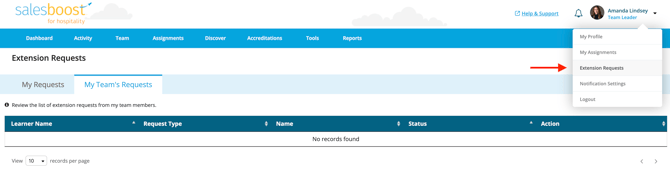
1. Click the link in your **email notification**, or navigate directly to the **"Extension Requests"** section in the platform.
2. You’ll see a list of **pending requests** from your learners.
3. Review each request and take the appropriate action:
- **Approve** to unlock the content for the learner
- **Reject** to keep the content locked in as **overdue** (Note, you can reassign the content to the learner or advise them they can reassign it to themselves)
---
### Best Practices
- **Check regularly:** If you receive multiple requests, reviewing them in-platform may be faster than managing each via email.
- **Communicate when needed:** If an extension isn’t appropriate, consider following up with the learner to offer support or alternative solutions.
- **Stay proactive:** Encourage learners to complete assignments on time, and let them know how you plan to handle extension approvals.**\***
**\*PRO TIP**: Update your leader [notification settings ](https://knowledgebase.salesboost.com/knowledge/how-can-i-manage-my-notifications?hsLang=en)to best support your learners with their upcoming deadlines!
- [Support FAQs](https://knowledgebase.salesboost.com/knowledge/support-faqs?hsLang=en)
- [Support For Learners](https://knowledgebase.salesboost.com/knowledge/support-for-learners?hsLang=en)
- [Support For Leaders](https://knowledgebase.salesboost.com/knowledge/support-for-leaders?hsLang=en)
- [Home](https://salesboost.com/)
- [About Us](https://salesboost.com/platform-tour/)
- [Blog](https://blog.salesboost.com/)
[](https://knowledgebase.salesboost.com/?hsLang=en)
[mailto:email@email.com](mailto:email@email.com)
Copyright © 2025, SalesBoost, LLC