---
title: How can I get a due date extension for an overdue course, certification, or program?
description: How can I get a due date extension for an overdue course, certification, or program? Submit extension requests for overdue learning content directly from your Assignments page.
---
[Skip to content](https://knowledgebase.salesboost.com/knowledge/how-can-i-get-a-due-date-extension-for-an-overdue-course-certification-or-program#main-content)
English
Show submenu for translations
[More support](https://knowledgebase.salesboost.com/knowledge/kb-tickets/new?hsLang=en)

- [Home](https://salesboost.com/)
- [About Us](https://salesboost.com/platform-tour/)
- [Blog](https://blog.salesboost.com/)
Open main navigation
Close main navigation
- [Home](https://salesboost.com/)
- [About Us](https://salesboost.com/platform-tour/)
- [Blog](https://blog.salesboost.com/)
- English
Show submenu for translations
- [More support](https://knowledgebase.salesboost.com/knowledge/kb-tickets/new)
- [Contact us](https://knowledgebase.salesboost.com/knowledge/kb-tickets/new)
[Contact us](https://knowledgebase.salesboost.com/knowledge/kb-tickets/new?hsLang=en)
How can we help you?
- There are no suggestions because the search field is empty.
1. [Support Community](https://knowledgebase.salesboost.com/knowledge?hsLang=en)
2. [Support For Learners](https://knowledgebase.salesboost.com/knowledge/support-for-learners?hsLang=en)
# How can I get a due date extension for an overdue course, certification, or program?
## Submit extension requests for overdue content directly from your Assignments page in just a few clicks.
### How to Submit a Request
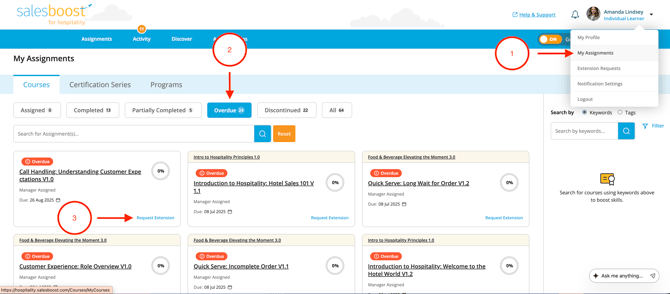
1. **Go to "My Assignments"**
Click the drop-down arrow next to your profile image in the top-right corner of the screen, then select **"My Assignments"** from the dropdown.
2. **Find Overdue Manager-Assigned Content**
Look for the relevant manager-assigned items that are past their due date.
3. **Submit the Request**
If the item is eligible for extnesion, you’ll see a **"Request Extension"** button. Simply click the button—**no form required**.
---
### What Happens Next?
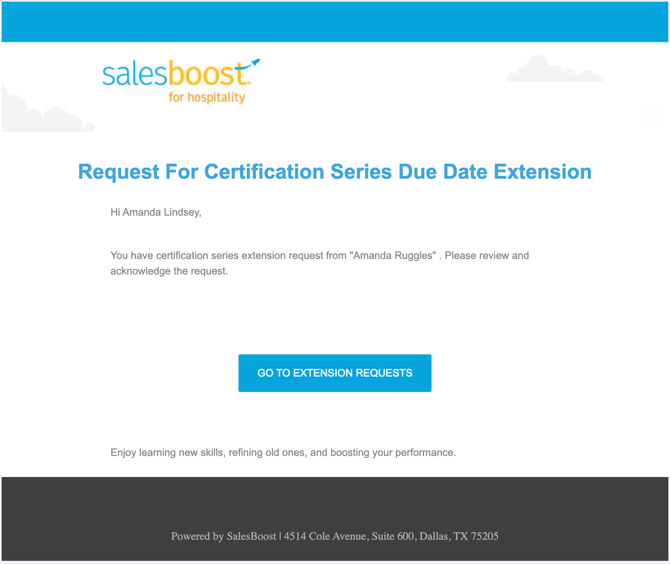
- Your leader will receive an **email notification** to review and respond to your request.
- You’ll receive updates once your leader takes action.
- The content remains locked until your leader acknowledges the request.
---
### How to View or Cancel Requests
To manage your extension requests:
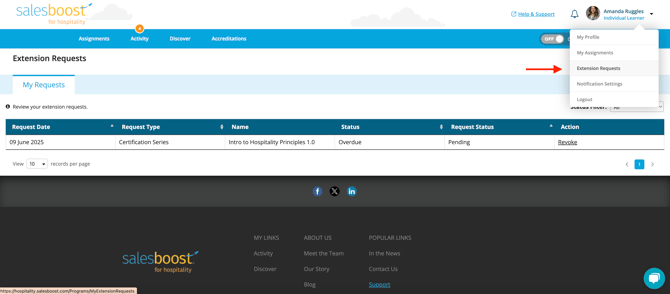
1. Go to **"Extension Requests"** directly from your profile navigation drop-down menu
2. You’ll see a list of all your **pending requests**.
3. To cancel a request, click **"Revoke"** next to the item.
---
### Tips for Success
- Remember: You can only request extensions **after** the due date has passed.
- Keep an eye on your **Extension Requests** page to track pending requests.
- Use this feature to stay in communication with your leader and continue your progress without delay.
- [Support FAQs](https://knowledgebase.salesboost.com/knowledge/support-faqs?hsLang=en)
- [Support For Learners](https://knowledgebase.salesboost.com/knowledge/support-for-learners?hsLang=en)
- [Support For Leaders](https://knowledgebase.salesboost.com/knowledge/support-for-leaders?hsLang=en)
- [Home](https://salesboost.com/)
- [About Us](https://salesboost.com/platform-tour/)
- [Blog](https://blog.salesboost.com/)
[](https://knowledgebase.salesboost.com/?hsLang=en)
[mailto:email@email.com](mailto:email@email.com)
Copyright © 2025, SalesBoost, LLC